If you're a radio DJ or manage music programmes on air, you know how much time it takes to build a quality mix: analysing BPMs, finding the right mix points, listening and re-listening. DJ.Studio completely changes this workflow.
What is DJ.Studio?
DJ.Studio is a timeline-based mixing software available both as a browser app and as a desktop application for Windows and Mac. Unlike classic two-deck software (Traktor, Serato, Virtual DJ), it's not designed for live mixing — it's built for creating pre-recorded mixes quickly, precisely and professionally.
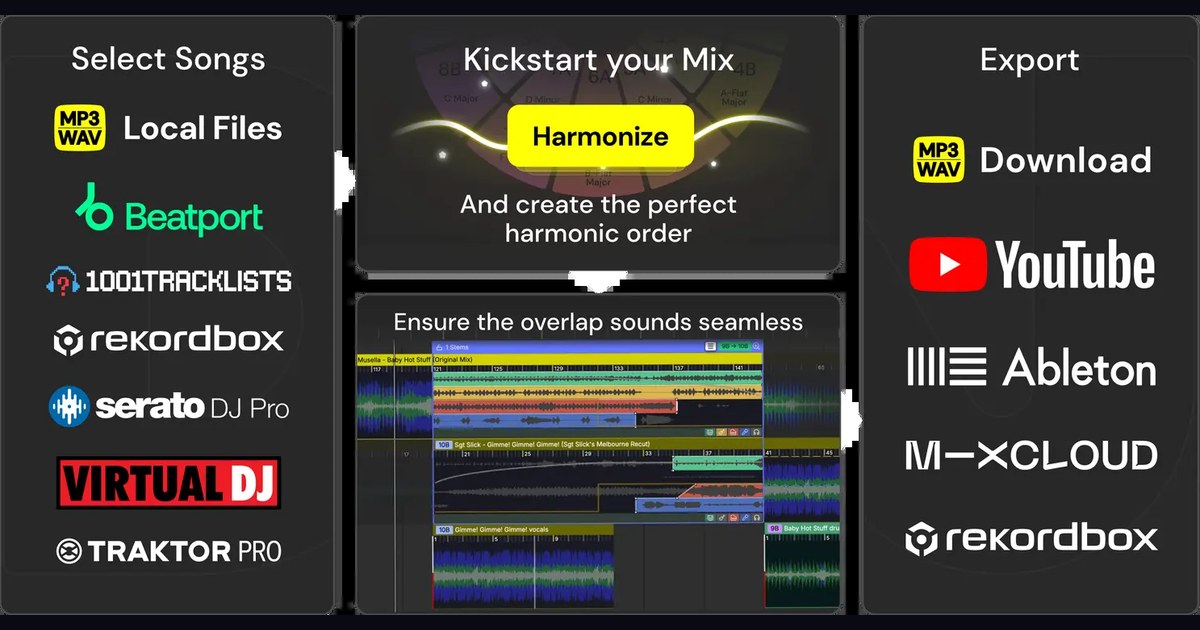
Its key feature? An AI engine that automatically analyses every track — BPM, musical key, energy — and suggests the best entry and exit points for each transition.
Why it's perfect for radio
- Massive time saving: a 60-minute mix that normally takes 3-4 hours can be prepared in 45-60 minutes.
- Consistent quality: the AI avoids clunky or off-beat transitions, even when you're in a rush.
- Direct audio export: export the mix as WAV or MP3, ready to load into RadioBOSS or any automation system.
- Automatic harmonic mixing: DJ.Studio respects musical key compatibility (Camelot Wheel) — mixes always sound harmonic.
- Spotify and SoundCloud playlists: import your playlists directly without managing local files.
How to use it: practical guide
1. Import your tracks
Load local files (MP3, WAV, FLAC) or connect your Spotify or SoundCloud account. DJ.Studio analyses each track in seconds: BPM, key, waveform.
2. Build your setlist
Drag tracks onto the timeline in the order you want. Start from an existing playlist or build from scratch. The timeline view shows your entire mix structure on a single screen — no more jumping back and forth between tracks.
3. Let the AI do its work
Click "Auto-mix" and the algorithm automatically calculates the optimal mix points for every transition. You can accept them as-is or fine-tune them manually by dragging markers on the waveform.
4. Tweak the transitions
Every transition is editable: adjust the entry point, crossfade type (linear, logarithmic, cut), volume of each track and add effects like loop or echo out. All done visually and intuitively.
5. Export and broadcast
Export as WAV or MP3 at your preferred quality. The file is ready to load into RadioBOSS as a schedule element, timed to the right hour and broadcast automatically.
Practical tips for broadcasters
- Prepare weekly mixes in advance: spend 2 hours every Monday preparing all your mixes for the week. With DJ.Studio it's doable.
- Use folders by genre: organise your library in folders by genre or BPM range — track selection will be much faster.
- Respect the hour's dynamics: build the mix with rising energy towards the top of the hour, then a slight dip — exactly as you'd do live.
- Naming convention: save files with a standard name like
MIX_20260429_HH.mp3— RadioBOSS will order them automatically. - Always check the preview: before exporting, listen to at least the first 10 seconds of each transition to make sure the AI hasn't made odd choices.
Pricing
DJ.Studio offers a free plan with basic features (up to 10 tracks per mix, limited export) and paid plans starting at around $9.99/month for the Creator plan, which unlocks unlimited exports, Spotify integration and the full AI mixer. For professional radio use, the Creator plan is the right choice.
Conclusion
DJ.Studio is not just another two-deck software — it's a tool designed for radio and podcast professionals who need high-quality pre-recorded mixes without spending hours on them. If you use RadioBOSS for automation, DJ.Studio becomes your best ally for filling music slots with curated, professional content.
Have you tried DJ.Studio? Write to us at info@radiokit.io — we'd love to hear how you use it at your station.